Filing a document
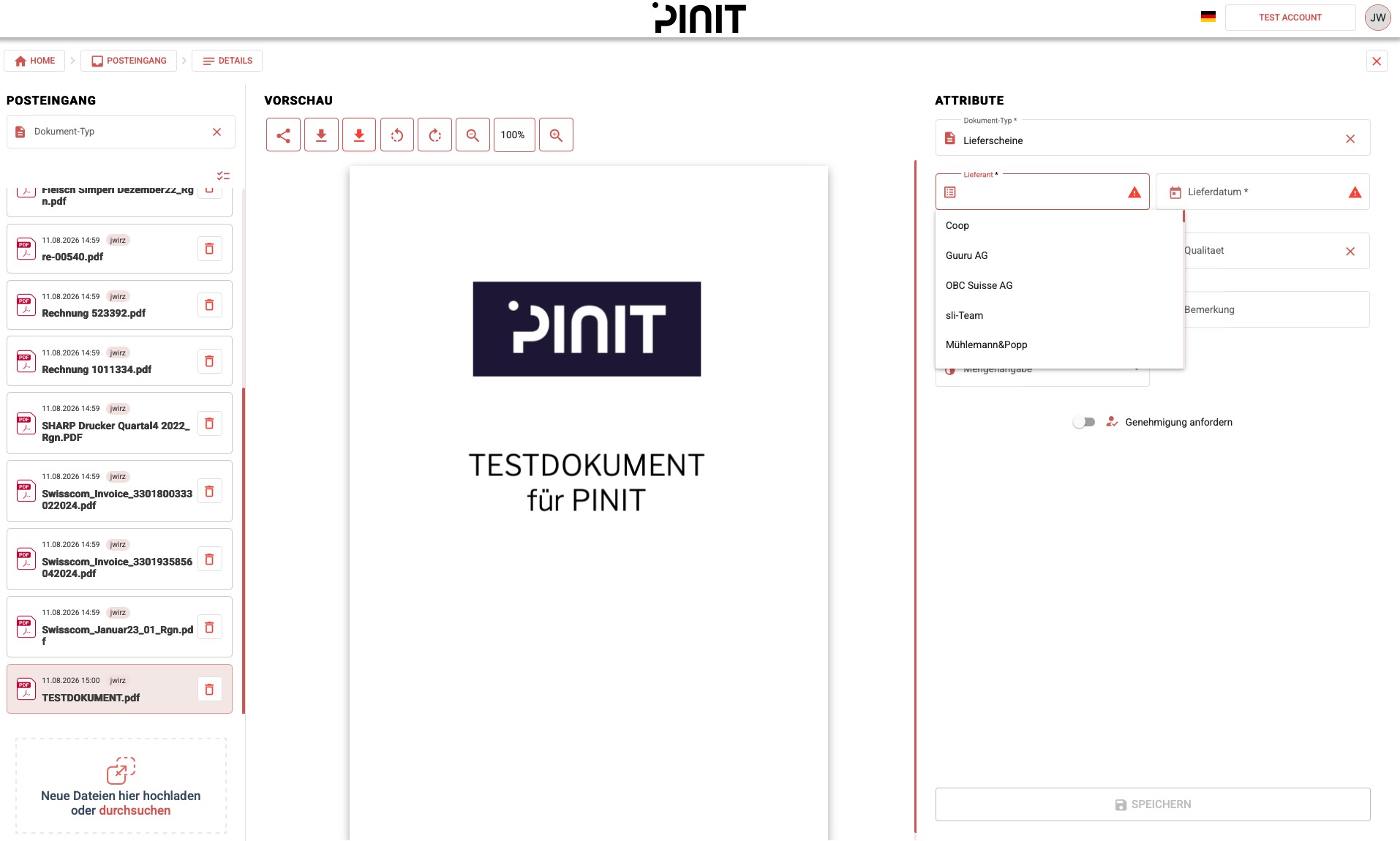
- Open a document from the Inbox.
- Select the doc type that matches the document.
- Fill in the required fields.
- Confirm — the document is moved to the archive.
Bulk archiving
If a document's doc type is already preset (for example, accounting documents assigned to the Counting & Vising module), it doesn't need manual review at the inbox stage. Select multiple such documents and click the archive icon in the toolbar to send them all to the archive at once. Any selected document that still needs manual review is skipped, and PINIT reports how many were archived versus skipped.
Frequently Asked Questions
What is the Inbox in PINIT? The Inbox is the staging area where documents arrive before being filed. Documents can come from email import, manual upload, or mobile scan. They stay in the Inbox until someone reviews and archives them.
What happens to a document after it is filed from the Inbox? It is moved to the archive and disappears from the Inbox. It becomes a permanent archived document.
Can I file a document without filling in all the fields? Only if the fields are not marked as required. Required fields must be filled before the document can be confirmed.
How do documents arrive in the Inbox? Via email (mail import), manual upload from a browser, or the PINIT mobile app. → See Uploading Documents
Can I archive several documents at once? Yes, if their doc type is already preset and doesn't require manual review — select them and click the archive icon in the toolbar. Documents that still need review are skipped and reported separately.